API
To use the API, you will first need to find your API key, accessible from the UI. Click on your user avatar and navigate to Settings, and then the Account page in settings. Here you will be able to see the API Keys. Expand this section and copy either the JWT token or create an API key.
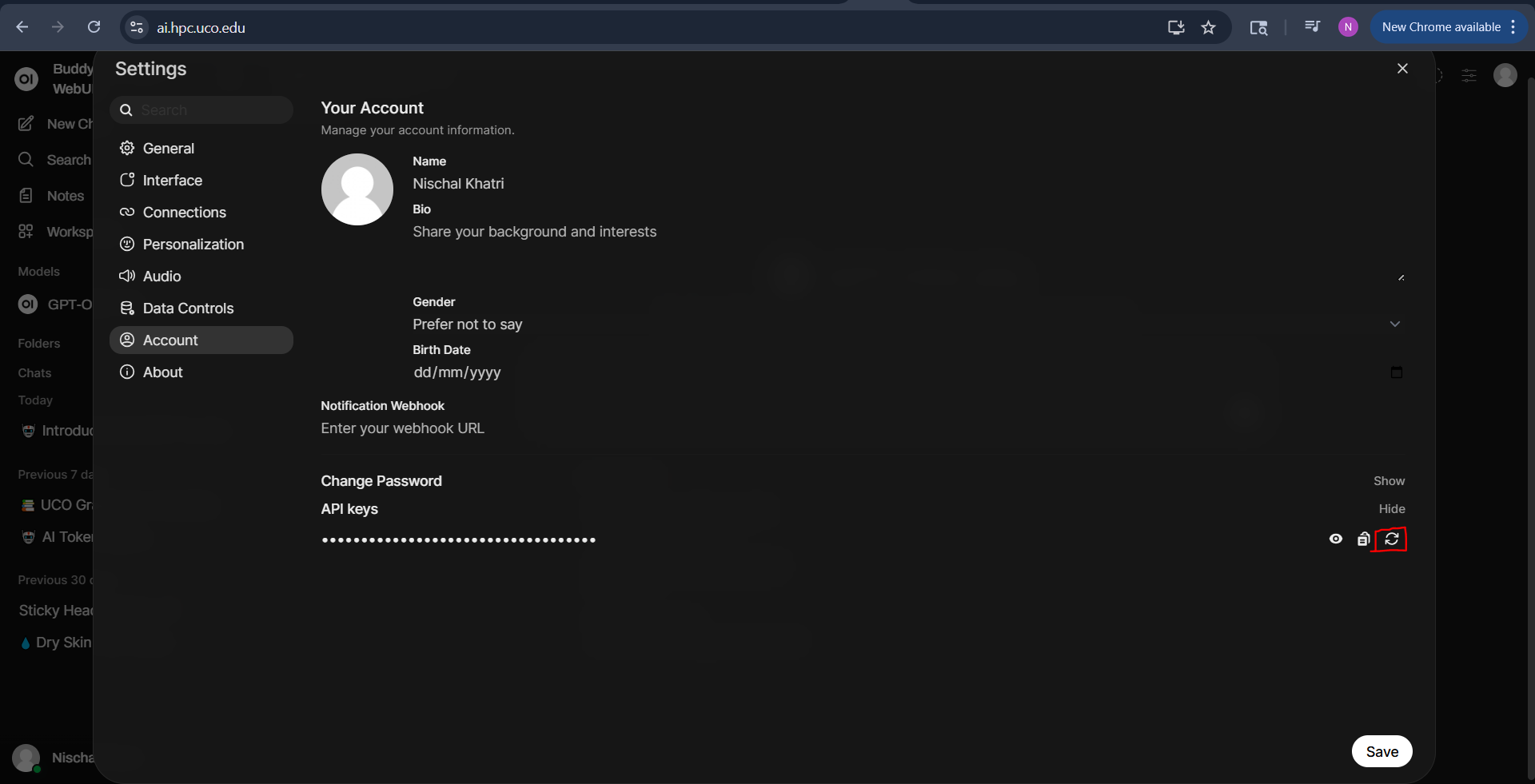
API Endpoint
Use the following endpoint to connect to the API:
For an OpenAI API-compatible response, use:
https://ai.hpc.uco.edu/api/chat/completions
Response Formats
Streaming Response
For a streaming response, results will be returned in the following format:
{
  "id": "chatcmpl-123",
  "object": "chat.completion.chunk",
  "created": 1677652288,
  "model": "llama-3.1-70b",
  "choices": [{
    "index": 0,
    "delta": {
      "content": "Hello"
    },
    "finish_reason": null
  }]
}
Non-Streaming Response
For a non-streaming response, results will be returned in the following format:
{
  "id": "chatcmpl-123",
  "object": "chat.completion",
  "created": 1677652288,
  "model": "llama-3.1-70b",
  "choices": [{
    "index": 0,
    "message": {
      "role": "assistant",
      "content": "Hello! How can I help you today?"
    },
    "finish_reason": "stop"
  }],
  "usage": {
    "prompt_tokens": 9,
    "completion_tokens": 12,
    "total_tokens": 21
  }
}
Accessing Stored LLMs on UCO HPC
Transformers by Hugging Face
For the Transformers framework, we provide the following models:
- GPT-OSS-20b
An open-source model from OpenAI
This model has been quantized using the MXFP4 format
Requires about 14 GB of GPU memory
- Command-R
An open-source model from Cohere
This model has not been quantized and its tensors are in BF16 precision
Requires more than 20 GB of GPU memory to run non-quantized version
- GPT-OSS-120b
An open-source model from OpenAI
This model has been quantized using the MXFP4 format
Requires about 80 GB of GPU memory
- Qwen3-Coder-Next
An open-source model from Alibaba
This model has not been quantized and its tensors are in BF16 precision
Requires more than 20 GB of GPU memory to run non-quantized version
Note
These models are contained in the following path:
/opt/ai_models
Downloading Transformers Compatible Models
Note
Before proceeding with a model install, consult Accessing Stored LLMs on UCO HPC to see if UCO HPC already provides the model you intend to use!
In order to install models from Hugging Face, you will need to create an account using https://huggingface.co/join. Once you have an account, you will then need to generate a token for our system using the documentation provided under the User access tokens page. If you only intend to install publicly available models and data, then usually read permissions are sufficient for the token.
After you have your account set up, you can search models using the Hugging Face Models page. Here you can refine your search based on the task you want to complete, model size, and dependent libraries. Once you have identified a model that you would like to run, review the model card, paying attention to the libraries needed and examples provided. If necessary, accept the terms of use for the model. For example, Meta’s Llama 3.1 requires you to accept a community license agreement. However, at the time of writing this documentation, OpenAI’s gpt-oss-20b does not require a license agreement.
Note
Depending on the model, it can take 30 minutes or more to get access to the model once you have accepted the terms of use.
At this point, all necessary libraries should be installed in either your custom environment or UCO HPC’s provided environment and we can begin downloading the LLMs we would like to run. If you are using our Transformers module, HF_HOME and HF_HUB_CACHE will point to your project’s directory, ensuring that your home directory does not fill up. If you are not using our module, be sure these variables are appropriately set before proceeding. There are several ways to install a model, however, we often suggest that you use the huggingface-cli. For more in-depth information about huggingface-cli (such as how to view models and delete them) see Command Line Interface (CLI). The hf cache scan and hf cache delete sections are particularly useful for managing models.
Once the huggingface-cli is available, you can set up your token associated with our system using the following:
hf auth login
When prompted for the token, provide the one you generated at the beginning of this section. When asked if you would like to “Add token as git credential?” you may type “n”, if you do not intend to use the token as a git credential. For new users, “n” is usually preferred for simplicity.
Important
To protect your tokens, it is suggested that you remove system-wide read privileges:
chmod o-r /projects/$USER/hf_transformers/stored_tokens
chmod o-r /projects/$USER/hf_transformers/token
Now that we have our tokens set up and we have accepted the terms of use, we can install our model from the command line. Here, we will install a very simple Gemma model (google/gemma-3-270m-it) into our directory /projects/$USER/hf_transformers/gemma-3-270m-it:
hf download --local-dir /projects/$USER/hf_transformers/gemma-3-270m-it google/gemma-3-270m-it
Tip
On Hugging Face, there are often different types of LLMs. For example, some have “instruct” in their name or specify that they are instruct models. Instruct models are, as the name implies, instruction models. These models are most likely what you want as they are ideal for specifying tasks for the LLM to perform and are the models used in common chat interfaces. In contrast, the base models make no assumption about structure and are attempting to only complete the text provided.
After this installation completes, you will then have access to your installed model! See the next section for instructions on running this LLM from Python.
Example Usage
Python Example
To use the endpoint, insert your API key in the example Python code below:
import requests

API_KEY = "your-api-key-here"
API_URL = "https://ai.hpc.uco.edu/api/chat/completions"

headers = {
    "Authorization": f"Bearer {API_KEY}",
    "Content-Type": "application/json"
}

data = {
    "model": "llama-3.1-70b",
    "messages": [
        {"role": "user", "content": "Hello, how are you?"}
    ],
    "stream": False
}

response = requests.post(API_URL, headers=headers, json=data)
result = response.json()

print(result["choices"][0]["message"]["content"])
This will return output in a JSON format along with metadata.
cURL Example
You can also use cURL to interact with the API:
curl -X POST https://ai.hpc.uco.edu/api/chat/completions \
  -H "Authorization: Bearer your-api-key-here" \
  -H "Content-Type: application/json" \
  -d '{
    "model": "llama-3.1-70b",
    "messages": [{"role": "user", "content": "Hello!"}],
    "stream": false
  }'
Note
Replace your-api-key-here with your actual API key obtained from the BuddyGPT UI settings.